Create bootable USB drives the easy way

Create bootable USB drives the easy way
[rufus screenshot]
Rufus is a utility that helps format and create bootable USB flash drives, such as USB keys/pendrives, memory sticks, etc.
It can be especially useful for cases where:
  • you need to create USB installation media from bootable ISOs (Windows, Linux, UEFI, etc.)
  • you need to work on a system that doesn't have an OS installed
  • you need to flash a BIOS or other firmware from DOS
  • you want to run a low-level utility
Despite its small size, Rufus provides everything you need!
Oh, and Rufus is fast. For instance it's about twice as fast as UNetbootinUniversal USB Installer orWindows 7 USB download tool, on the creation of a Windows 7 USB installation drive from an ISO. It is also marginally faster on the creation of Linux bootable USB from ISOs. (1)
A non exhaustive list of Rufus supported ISOs is also provided at the bottom of this page. (2)

Download

Last updated 2016.03.22:

Supported Languages:

AzərbaycancaBahasa IndonesiaBahasa MalaysiaБългарскиČeštinaDanskDeutsch
ΕλληνικάEnglishEspañolFrançaisHrvatskiItalianoLatviešuLietuviųMagyarNederlands
NorskPolskiPortuguêsPortuguês do BrasilРусскийRomânăSlovenskySlovenščinaSrpski
SuomiSvenskaTiếng ViệtTürkçeУкраїнська简体中文正體中文日本語한국어ไทย
العربيةفارسی.

System Requirements:

Windows XP or later, 32 or 64 bit doesn't matter. Once downloaded, the application is ready to use.

I will take this opportunity to express my gratitude to the translators who made it possible for Rufus, as well as this webpage, to be translated in various languages. If you find that you can use Rufus in your own language, you should really thank them!
Install Windows 7 from a USB drive the very easy way

Install Windows 7 from a USB drive the very easy way

The fastest way to install windows 7 is from abootable usb drive. You can cut the install time down to around 15 minutes compared with 30-40 via DVD if you use a fast drive.
People still asking me to explain what is the best way to do this as many of the guides online are too complex, or require third party software which doesn’t always work as they supposed to.
With this BootableUSB guide all you need to ensure is that your motherboard supports USB booting, and this is a common feature now for most of the computers.
Today I am going to publish a step by step guide which works perfectly and doesn’t require any additional tools – I have been doing it for some time now to create bootable Windows install drives.
You need to get hold of a fast USB 2.0 flash drive. It doesn’t need to be 32GB or bigger,however, all you need is a 4GB unit. The faster it is, the better.
What you need:
– Windows 7 DVD install disc or ISO image
– USB Drive (4GB+ and as fast as you can get)
– Running Windows Operating system
– Working set of hands and eyes
– A few minutes of your life
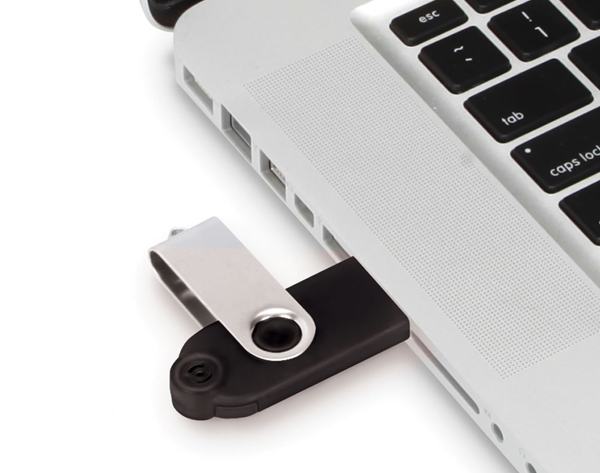
Plug in your USB drive in the USB port:
Usb Drive Plugged
Before going any further, make sure you have removed any important files on your drive to a safe location, what we are about to do next is to erase the entire contents of the drive.
Insert your DVD of Windows 7 into the computer, but don’t start the normal install process.
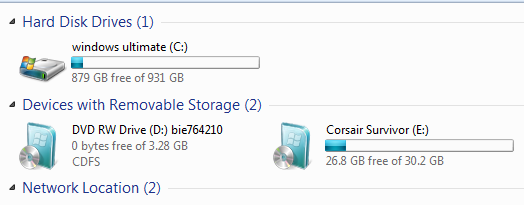
Open your ‘My Computer’ and make a note of the drive numbers of both the USB drive and the DVD drive with Windows 7 files on it.
Usb And Computer Drives

As you can see from the image above, the DVD drive is drive has letter D assigned and the USB drive is E.
Open the command prompt with admin rights. Type cmd in Start menu search box and hit Shift+Ctrl+Enter.
To keep things really easy, if you see text in upper case, it means this is what you type into the command prompt (you don’t need to type in upper case).
cmd-prompt-usb-bootable

Next type
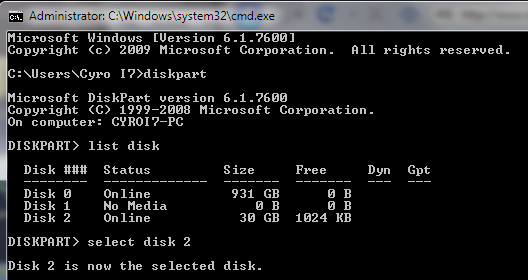
DISKPART
this loads the diskpart application we need to proceed
Then type
LIST DISK
the image above shows our 32 GB USB drive is listed as DISK 2
so you have to type
SELECT DISK 2 (your USB Drive may have a different number, don’t follow exactly this text it depends on your usb drive)
You will get a successful response “Disk 2 is now the selected disk”
Clean Cmd USB Drive
Next we want to clean the USB drive
Type:
CLEAN
you will get a successful response ‘DiskPart succeeded in cleaning the disk”.
Clean USB Drive

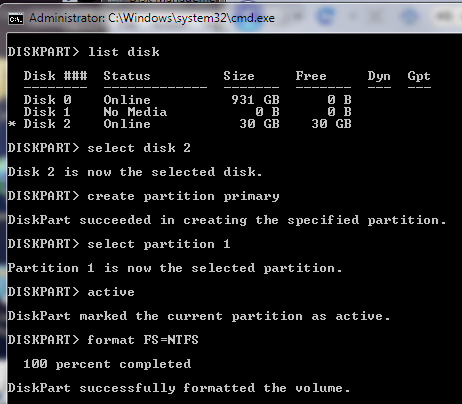
After the drive is cleaned follow the list in the image above (detailed below in list order) – you can also note the successful text responses from the OS as you enter each command.
SELECT DISK 2 (or what number your USB drive has)
CREATE PARTITION PRIMARY
SELECT PARTITION 1
ACTIVE
FORMAT FS=NTFS
Formatting can take a little time depending on the size of the drive, our 32GB unit took about 10 minutes to format - you will see a percentage readout until it is finished.
Bootable USB Final Cmd Prompt
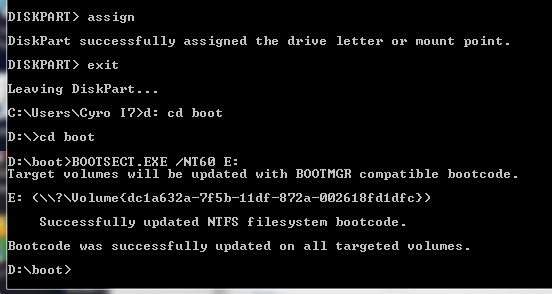
Next type:
ASSIGN
EXIT (DISK PART will exit)
Type D: CD BOOT (substitute the “D” if necessary with the letter of your Windows 7 DVD drive)
then key
CD BOOT
then
BOOTSECT.EXE /NT60 E: (substitute the “E” if necessary with the letter of your now ready USB drive) – we are telling the system to create a boot sector file on the USB drive.
Now you can exit the command prompt and copy all the files on the Windows 7 DVD to the USB drive.
Once this step is finished you’ll be ready to boot from this drive, all you need to do is configure your motherboard bios setup to boot first from USB rather than hard drive or optical drive. If you don’t know how to do this, refer to your specific motherboard manual or search the internet.

how to install a printer

Step 1: First, connect the printer to your network by connecting one end of a Cat 5 or 6 cable (which should have come with your printer) to your router and the other end into the network port of your printer. Now, turn your printer on and wait for it to become ready.
connect-extender-to-router-small
Step 2: Next you’ll need to get the IP address of your printer. The IP address is what will let your computer know where to find your printer on the network. All network printersallow you to print a configuration sheet that will list basic information about the printer along with the current network configuration.
For most printers, this involves pressing the Menu button on the printer, going to theInformation option and choosing Print Configuration. Sometimes if there is no display, you just press and hold the Go or Print button down for about 10 seconds and it’ll print the configuration page. You will be looking for the TCP/IP section:
ipprinter
The IP Address is what you’ll need for the next steps. You printer should automatically get an IP address from the DHCP server on your network. At home, the IP should be coming from the wireless router or residential gateway if you have one that acts as a cable modem plus router.
Step 3: The last step is to add the printer to your computer. Click on Start, then Printers and Faxes.
printers and faxes
If you don’t see this in your Start Menu, you can go to Start, Control Panel and then click on Printers and Faxes there. Click Add Printer from the task pane on the left.
add a printer
The Add Printer wizard will begin, so click Next to get started. On the next screen you’ll be asked whether your printer is a local printer or a network printer. These options are confusing because a network printer is actually referring either a printer connected to another computer or a printer on a print server. Our printer is a stand-alone printer and so you must select Local printer attached to this computer and make sure that youuncheck the box for automatically detecting the printer.
local printer add
Click Next and you’ll be asked to select the printer port. Since our printer is a network printer with a IP address, we need to select the Create a new port option and chooseStandard TCP/IP Port.
standard tcpip port
Click Next and you’ll get another wizard to add a TCP/IP printer port. On the main wizard screen click Next. In the first text box, Printer Name or IP Address, enter the IP address from the printer configuration sheet you printer earlier.
add tcpip port
Click Next and depending on the printer you have, you may get one more dialogs before the end of the wizard. If the network card for the printer cannot be identified, the wizard will ask you to choose the card type. You can leave the default of “Generic Network Card” and click Next.
generic network card
Click Next and click Finish. You will then continue on with the Add Printer wizard and you’ll need to either choose the printer from the list of manufacturers or click Have Disk and insert your printer driver cd in the computer.
install printer driver
Click Next and enter a name for your printer and click the Yes radio button if you would like the printer to be your default printer.
name printer dialog
Click Next and you’ll be asked whether you want to share the printer or not. Click No because anyone else who wants to connect will be able to do so following the same steps. In later versions of Windows XP, the printer sharing dialog has been removed. Click Next and click Yes to print a test page and make sure that the computer and printer can communicate!
print test page
Click Next and then click Finish! The new printer will appear in your Printers and Faxes screen and you’re ready to print to your network printer in Windows XP!

Install A Loopback Adapter In Windows 7

The Microsoft Loopback adapter is a groovy little tool originally designed for testing network configurations.  Over time however, many other uses have been found for it such as networking two computers together without using a cross-over Ethernet cable, and connecting virtual machines to the internet.  We’ve covered setup for the loopback adapter in XP and Vista but for reasons unknown Microsoft annoyingly has decided to hide the “Add New Hardware wizard” in Windows 7.  This changes the setup process around and can make it very difficult to start, so here is a new groovy How-To guide just for installing the Windows 7 Loopback adapter!

How To Setup A Loopback Adapter On Windows 7
1. Click the Start Menu Orb. In the search box Type hdwwiz and then Click the hdwwize.exeprogram link.
image
2. Now the Add Hardware wizard should be open.  Click Next through the first page, and then on the second Select Install the hardware that I manually select from a list (Advanced)Click Next to continue.
Windows 7 Networking Screenshot - click the install the hardware that I manually select forma list (Advanced)
2. Scroll down the list and Select Network Adapters then Click Next.
Windows 7 Networking Screenshot  - select network adapters
3. Give the next window a moment to load, and then Click Microsoft and Select Microsoft Loopback Adapter.
Windows 7 Networking Screenshot select microsoft > microsoft loopback adapter
Now the Microsoft Loopback Adapter should be installed and it will show up in your network connections window.  From here you can easily configure your adapter to do whatever you’d like!  Groovy!
Windows 7 Networking Screenshot - the Microsoft Loopback adapter visible in the network connections window

http://www.omnisecu.com/basic-networking/index.php

very imp blog

How Hackers attack networks and a Hacker's mindset

Footprint analysis or Reconnaissance: Footprint analysis or Reconnaissance is the first step typically performed by a network hacker. In Footprint analysis or Reconnaissance, hacker gathers information about the target network. Footprint analysis or Reconnaissance is to map the addresses, devices, operating systems, application running in the target network.
Footprint analysis or Reconnaissance helps attacker to tailor an attack plan to exploit known vulnerabilitiesconfiguration errors in the target network.
Attackers use many information which are available in the internet like DNS lookups to find the name and IP address of the target network, WHOIS information to find the contact details name server names etc.
Launch Attack: After performing Footprint analysis or Reconnaissance, hacker gain much information about the target network. The next step is to launch an attack on the target network based of the found vulnerabilities.
Escalate privileges: If the hacker gained access as an normal unprivileged user, then the next step to to escalate the user account to gain administrator-level privilege.
Jump to other servers and devices: Once the hacker is inside the internal network, then he can gain access to other devices inside. Collect additional information like applications running, operating systems, user ids, password etc.
Install Back Doors: After compromising servers and collected the information he required, hacker then try to install and configure back door or remote-control hacking tools to gain access to the system in future. A backdoor application allow the hacker future access to the compromised machines. or to
Hide the Tracks: After performing attack and installed back door applications, next step is to hide the tracks so that the hacker can hide the attack from administrators. Hackers do perform many actions for this. For example, deleting the log files.
Leverage the compromised network: Finally, hackers start using the target network. They can steal or destroy the target network data, bring servers down, or attack another organization using the target network's systems.

How to provide better security to your enterprise network

As a network security administrator, your job is to provide better security to the enterprise network. Listed below are some tips which are successfully implemented in many organizations to bring better security to the enterprise network.
Compartmentalization: The different network resourses and data in every network is of different importance and sensitivity. Enterprise network resourses and data of different sensitivity should be located in different security zones. Access to Enterprise network resourses and data stores should be provided through highly controlled communication mechanisms.
Defense in Depth: The idea behind Defense in Depth is that security is implemented everywhere possible in an enterprise network (layered protection). Network security devices are employed in different places of enterprise network. Security of network systems and consists of different technologies with different protection levels.
Rule of Least Privilege: Rule of least privilege states only minimal access is provided to the required network resources. Only minimal level of access required to complete a business tasks only must be assigned.

Adequate Protection: Aqurate current and relevent protection mechanisms must be installed in the network.

Information Hiding: Only the information that is required to complete a business task must be provided to the employees.
Separation of duties and job rotation: Separation of duties and job rotation helps in better implementation of enterprise security policies and reducing vulnerabilities.
Auditing: Auditing aims in keeping track of what is happening in network and find any security hole.